
It started with a friend who needed to learn the Gambrinus menu quickly. We volunteered to help. We wanted a simple way to review dishes, but got carried away. Cards led to quizzes, an AI coach and a team chat. Eventually, it became a project of its own.
The trainer remains independent. Restaurant employees actively use it on their own initiative, outside the chain’s official training programme.
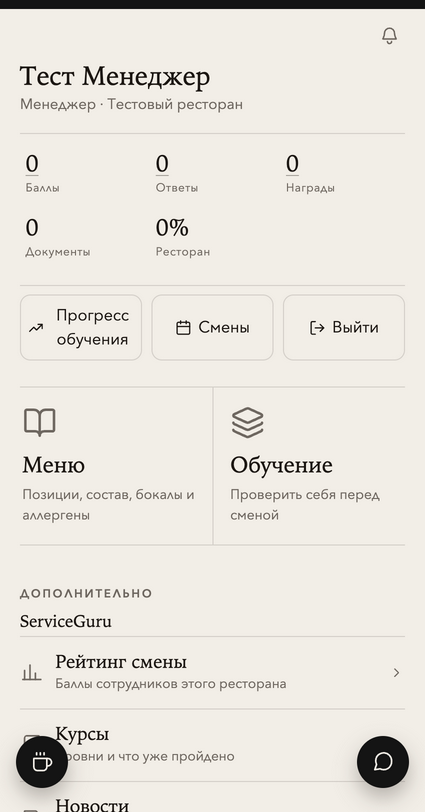
All screenshots were taken in a local development environment and show a test profile. The interface is in Russian.
Finding your way around the app
The home screen opens Menu, Training, progress and work materials. Employees sign in with a ServiceGuru account, which also provides access to courses, news, certificates and the shift leaderboard. There is a waiter handbook with service standards, a Kozyrnaya Karta reference and a mystery-shopper checklist.
Managers have a separate sign-in page. It opens the Menu Questions section directly. Managers and their deputies can leave questions for the learning database and read colleagues’ answers. Unclear descriptions can therefore be checked with people who work with the menu on site.
The menu contains 500 kitchen and bar items, including business lunches, specials and banquet dishes. There are several ways to find an item:
- Know its name or an ingredient? Search across the entire menu.
- Want to review a section? Open a category or subsection, such as Kitchen → Cold Starters. Additional filters depend on the section: wines can be filtered by country or grape variety.
- Recognise things by their photos? Switch to tiles. A list works well for reading descriptions.
- Need to return to an item quickly? Bookmark it. Long lists have a back-to-top arrow, and the back button returns to the previous menu level.
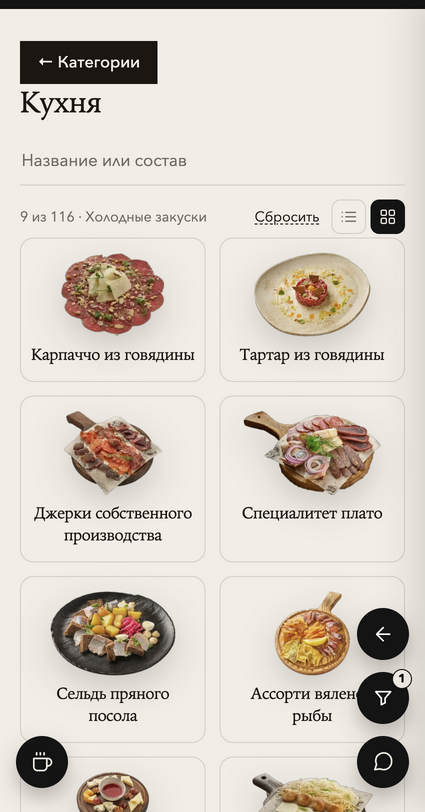
Dish cards reveal connections across the menu
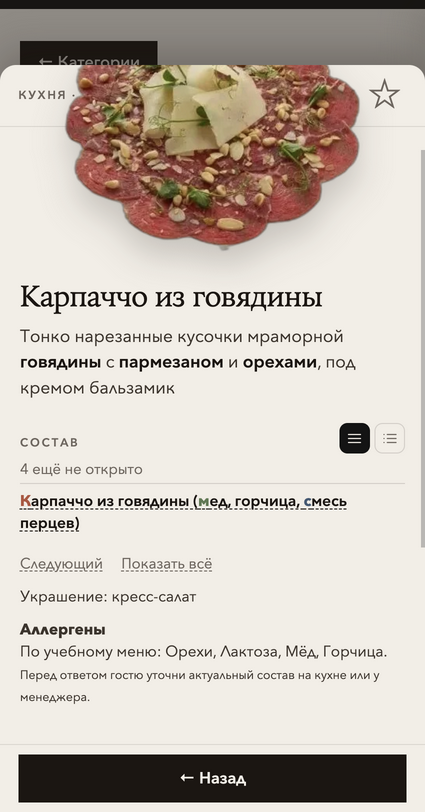
The beef carpaccio card shows how browsing becomes a small practice session. First, you can read its description and ingredients alongside a photo. Ingredients can appear as separate items or as a single line.
Check yourself hides the ingredient list. Try naming the ingredients aloud as if describing the dish to a guest, then press Next to reveal one ingredient at a time. You can reveal the whole list or restart the exercise. This option appears on cards with at least three ingredient entries.
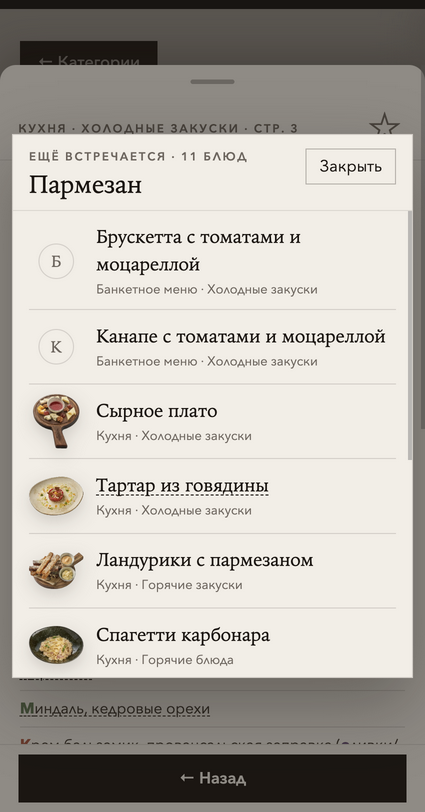
Where else is this used? opens when you tap an ingredient. From the carpaccio card, for example, you can select Parmesan, find other menu items that contain it and open their cards.
Similar lists dishes with shared ingredients and explains the connection. Where explicit relationships are available, cards also show Don’t confuse with and Pairs with sections. At the bottom, users can report an inaccurate description.
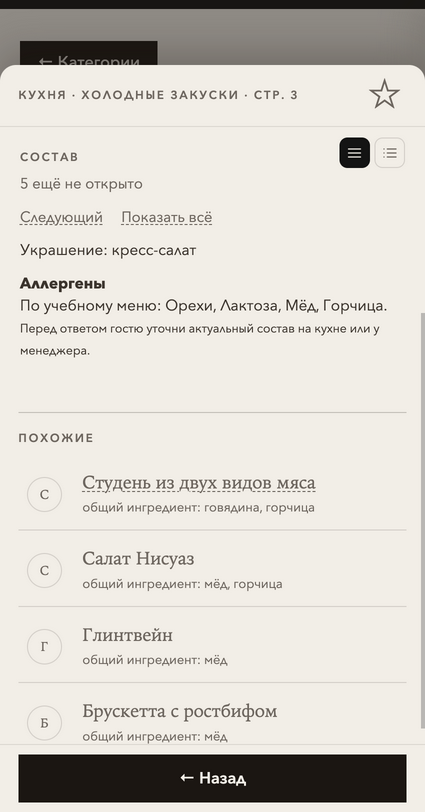
Allergens have their own section. Information taken from the training menu is labelled with its source. Before answering a guest, staff need to confirm the current ingredients and preparation conditions with the kitchen.
Four training tabs
| Mode | What it does |
|---|---|
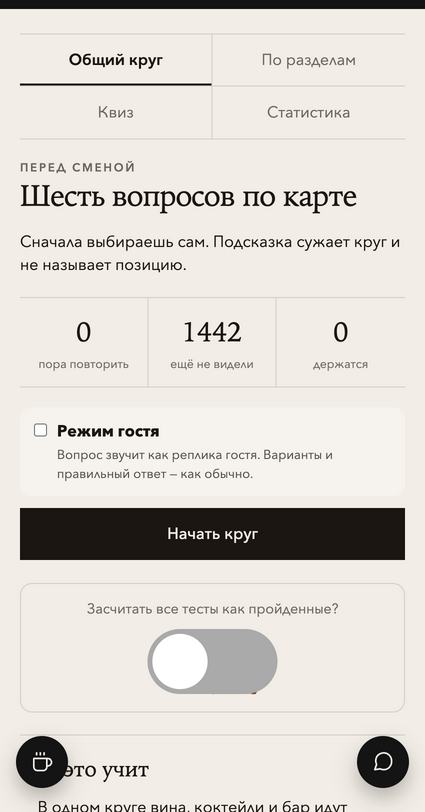
| General round | A short, six-question practice session. Sections are mixed, and questions due for review take priority. |
| By section | Focus on a subject, such as soups, cocktails or a group of wines. Answers contribute to the spaced-repetition schedule. |
| Quiz | Ten questions from a selected section or the entire menu. Each menu item appears at most once. The final screen shows the score, mistakes and correct answers. Results contribute to quiz statistics but do not change the review schedule. |
| Statistics | Shows what has been learned, how quiz results change and which sections or cards cause the most mistakes, including a breakdown by skill. |
A Guest mode toggle changes the wording of training questions. A guest’s conversational request can replace the usual card wording. The options and correct answer still come from the learning card.
The learning method
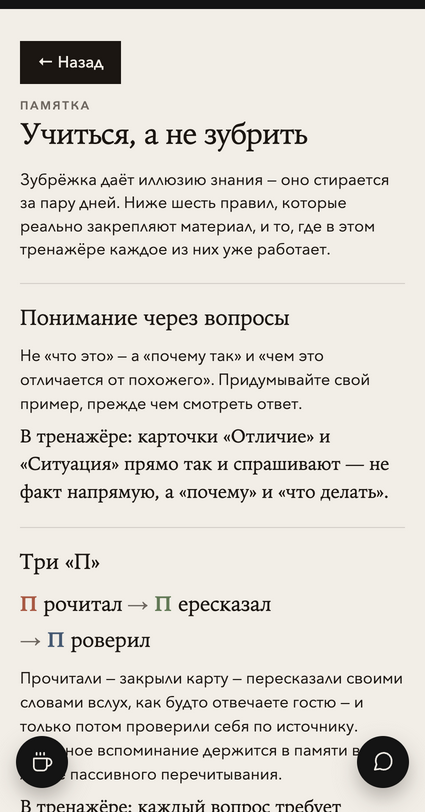
The Learn, don’t cram guide describes three steps: read, explain from memory, then check yourself. The same principle applies when a dish card hides its ingredients and when a general training round asks you to choose an answer.
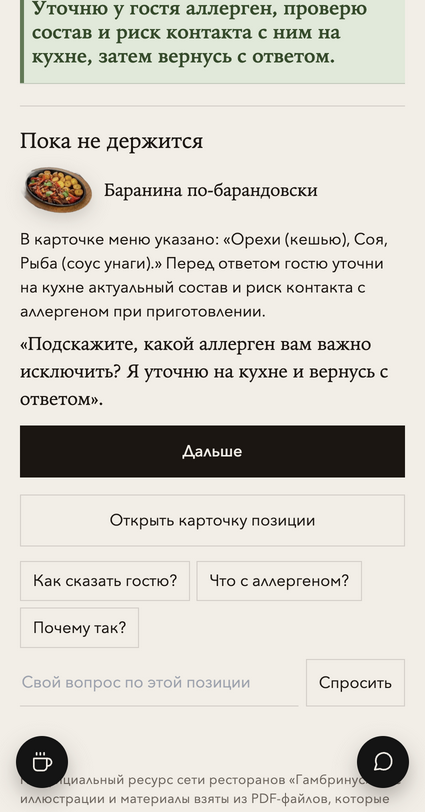
Each question has a 15-second timer. Hints are available, and the answer is followed by an explanation and an example of how to speak to a guest. Questions cover ingredients, drink profiles, differences between similar items, allergies, upselling and age-restricted service. An allergy question, for example, asks how to clarify the guest’s allergen and check ingredients and preparation with the kitchen.
During regular practice, a correct answer moves the next review further into the future. Intervals start at one day, then increase to three days, one week, three weeks, two months and six months. After a mistake or timeout, the question becomes available again in ten minutes.
How the AI coach works
A floating button opens AI Chat. Users can ask how to present a dish, suggest an addition to an order or handle a typical situation during a shift. Suggested questions cover service, upselling and work situations. After answering a training question, users can also ask the coach about that specific item: How do I explain this to a guest? or Why?
On the server, the chat searches the catalogue for a named dish. If several items match, it offers choices and asks for clarification. When opened from a learning card, the server receives the item’s identifier and loads its data directly. Conversational answers use Llama 3.1 8B through Cloudflare Workers AI, with text streamed as it is generated.
Allergen questions follow a separate path. If the dish is found, the chat displays information from its record and identifies the training menu as the source. If the data is missing, it says so. The screenshot shows this flow for chicken Caesar salad.
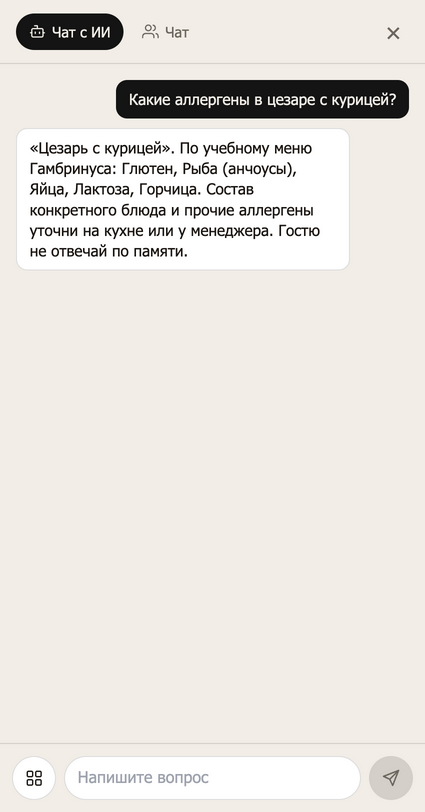
The same window contains two mini-games: guess a dish’s ingredients, or identify a dish from an ingredient and photographs. Questions are assembled from the catalogue, so a mini-game round does not require the model to generate text.
Team chat
The second tab in the window is Chat, a group chat for employees of the same restaurant. After sign-in, the app determines the restaurant from the account and opens the appropriate room. Staff can message colleagues, clarify a work question or return to previous conversations.
Push notifications
- Learning reminders. When a review is due, the trainer can suggest opening the app. If a name is available, the notification uses it. AI selects a short, playful line from prepared options.
- Team chat messages. When the chat tab is closed, a new message can arrive as a push notification. Notifications are also accessible through the bell on the home screen.
- Shifts. Users can enable a reminder about tomorrow’s shift and receive a notification when the weekly schedule changes.
The same work situation can start on different screens. Before a shift, open a quiz. During the shift, find a dish by an ingredient. For a specific question about today’s presentation, ask colleagues in the restaurant’s chat.
Open the Gambrinus menu trainer. An employee sign-in is required.